Tuesday, August 31, 2010

convert/Translate text document in other language using MS Word 2007

Sometimes we need to translate documents from english to some other language or viceversa. If u need to do this and you don't know that language, then now you can do this simply by using MS Word 2007, no need of translator.

you can insert phrases from languages you do not know into your documents, duplicate documents in multiple languages without retyping and transform documents you have received in foreign languages so you can read them.



Just follow these steps to translate document into other language:

1). Open document and select text which you want to translate.
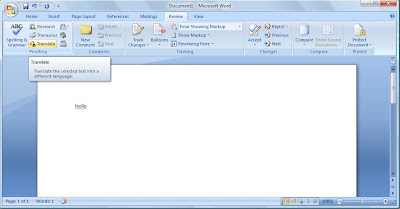
2). Click on Review button on toolbar then on translate.

3). A window will open on right hand side, here select language in which you want to convert document and also existing language.
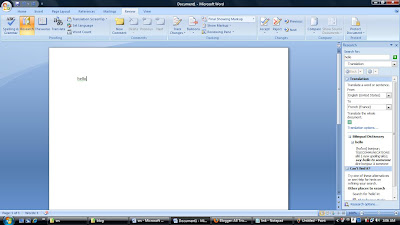

4). Click on Go.
5). The selected or highlighted text will be translated in the lower part of the task pane shown in figure.
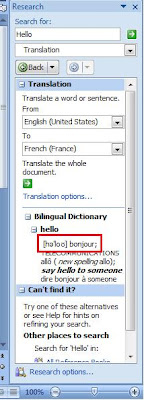


If you need to translate the selected text into a language that is not included in the given list, click on Translation options and select the particular language you want.

Sunday, August 29, 2010

Have FUN with Google - Try Google Gravity


Google Gravity is a Google Chrome experiment that initially loads a typical Google home page and then suddenly the elements are pulled down by gravity and you can start tossing them around!

This only works 100% in Google Chrome. If you run the page on Firefox, you won’t get the satisfaction of tossing the elements around!

Follow these Steps:

1). Open google.com.

2). Type Google gravity.

3). Click on I'm Feeling lucky.

have fun!!!

Saturday, August 21, 2010

Speed up your computer by cleaning RAM using notepad

If your computer become slow, when you are working with many programs. It may be due to RAM because at that time RAM is full of remaining progress pieces which you are working with and you do not need them any more. So, if you can erase or delete those unnecessary pieces of information, your computer RAM will be cleaned and your computer will be speed up.


Cleaning RAM is very easy task here are steps for it, just follow them:

1). Open notepad.

2). Type FreeMem=Space(64000000).

3). Save file with name "CleanRAM.vbs".

4). Close it and run the file.

It will free memory in RAM, if you want to free more memory than you can write following command in notepad instead of what given in step 2.

FreeMem= (256000000) for 256 mb
FreeMem= (128000000) for 128 mb
FreeMem= (72000000) for 72 mb
FreeMem= (64000000) for 64 mb
FreeMem= (32000000) for 32 mb
FreeMem= (24000000) for 24 mb

Make sure that you don't select the memory that is larger than your memory capacity.

Friday, August 20, 2010

Split or Extract Video files by using ChopperXP

Wanna extract some particular part of some video or movie? Now you cna do it easily, videos can be easily split or cut by using this software named Chopper XP.
It is very useful when you have less storage space and require a particular portion of video.


Chopper XP is a Vob cutting program with a video display and a great interface. It is a DVD cutting program and has very fast speed of operation. You can scroll to a location and select mark in and out points and save the file as a Vob file. The program also lets you set any priority of extraction and displays the estimated time left for extraction.

It let you extrat video files from any DVD and it preserve 100% quality as there is no recompression.

Its a freeware software, available on internet. You can download it by clicking on the link given below.

Click here to download chopper xp

Tuesday, August 17, 2010

Portable Music player - Carry audio player in USB

USB Pen Drives are a great way to carry your files around, and that includes your favourite collections of audio files. But it's very diffcult and slso annoying to manage all audio and video files without favourite music player.

So here is one Audio media player for your USB Pen Drive that you can carry around along with your media collection. Its name is CoolPlayer+.


CoolPlayer+ Portable is an easy to use audio player which allows user to listen to his music wherever he go. It can be placed on USB flash drive, iPod, portable hard drive or a CD. You can use it on any computer, without leaving any personal information behind.

Its a freeware utlity software, you can download it easily form internet.

Click here to Download

Sunday, August 15, 2010

Record mouse postions and replay Movements and Actions

Now its really possible to record mouse positions, which allow you to replay movements and actions even in your absence. For this you need to download one utility software named Auto Mouse Move.


Auto mouse move is free software utility which record the mouse positions one by one as you move the mouse, and it can replay all the movements and actions (single click, double click, no action).

You can save the coordinate of the mouse pointer and the action you want (single click, double click, no action) and can start the program so that it can simulate as if there is a human sitting behind the computer. It will relieve you from many manual and daunting tasks. It can also save the records to a file so that you will not have to reenter the actions again and again.

Auto mouse move is freely available on internet. Its very easy to use, you can also prank your friends by using this..

Click here to Download

Saturday, August 14, 2010

Some intresting facts about facebook

As we all know facebook is best social networking site, most if us are completely familiar with facebook as we have account on it.

Here are some intresting facts about it like when it was discovered... what was he purpose behind this and so on..


Lets start from here...

  • Facebook was launched by Harvard Student Mark zuckerberg and his roommates in february 2004.'
  • It was initially called The Facebook.
  • It was a site for Harvard students to connect with one another.
  • Within a month of its launching, more than half of Harvard's undergraduate population had a profile on facebook.
  • More than 60 % of men and women have used Facebook to stalk their ex.
  • More than 30 million users update their status at least once each day.
  • Around 85% of all college students use Facebook and 70% of them log in everyday.
  • The average Facebook user has 130 friends and sends eight friend requests per month.
  • The average Facebook users spend more than 55 minutes a day on the site. They use the Like button nine times a month and write 25 comments each month.
  • There are more than 800,000 developers building applications for Facebook
  • It is the second-ranked site overall in the U.S. behind Google.
  • As of july 2010, over 500 millions people are using facebook.
  • Facebook revenue stems from Ads, applications and credits.
  • Facebook's games are really popular.
  • Farmville Claimed over 83,000,000 active users in feb 2010.
  • Mafia Wars claimed over 25,000,000 active users in feb 2010.

  • Current valuations of facebook are upwards 20Billion $.
  • Facebook was operating with more than 60,000 servers in 2009.


Add Run command to start menu in Vista

Window vista does not have run command in start menu. Run command is great feature of window xp. So those who upgrade from window xp to window vista may miss run command.
Here are steps to include run command in window vista's Start menu.


Follow given steps to add run command to start menu:

1). Right click on taskbar and go to properties.

2). Click on start menu tab.

3). In start menu properties, click on customize button.


4). Scroll down to run command and click on check box of run command.


5). Click ok.

Its done.
Check start menu, It should include run command as shown in figure.


Hide recently opened files and programs from Start Menu


Windows save list of recently opened files and show them in start menu. Its very convinient to find files. But if you wanna some privacy, if you don;t want others to see which files and programs you opened than you can hide recent files.


To remove recent items from start menu just follow these steps:

1). Right click on taskbar and click on Properties.

2). Click on start menu tab.

3). Uncheck the check boxes under privacy.


4). Click ok.

Its done.
Click on start menu and check recent items and recent programs, they must not be in start menu. Start menu will look like this figure.


Friday, August 13, 2010

Make Start menu's icon smaller - Cool Computer Trick

Window vista by default has large icons in start menu, So you can pin only limited number of programs with Start menu. If you want to pin more programs with start menu then this trick can be proved useful. You can make icons smaller in start menu, it will provide more space, hance you can pin more programs to Start Menu.


Here are steps to set small icons in start menu:

1). Right click on taskbar and select Properties.

2). In properties window, Go to start menu tab.

3). Click on customize button.


4). In custmize window, scroll down to bottom and uncheck Use Large Icons.


5). Click on Ok and then on Apply.

Now see the changes in start menu. It should look like yhis figure.


Thursday, August 12, 2010

Relax your eyes while working on your Computer

If you use computer for more than 2-3 hours per day, for any purpose work, fun, internet, games or anything. It may strain your eyes.


Long and continous working on computer makes eyes tired, which may lead to some serious eyes problems like
blurred vision, back and head aches, dry and burning eyes, forehead heaviness, light sensitivity, delayed focusing, sore eyes or distorted color vision. To prevent this we should give small brakes to our eyes during long working hour. this can be done by using a small application named Eye Relax.


Eyes Relax is a small application that can do just that, reminding you at a specified interval to relax your eyes. It alert the user after every 13 minutes( by default its 13 minutes but you can change it according to your preferences) that is time to take a 60 seconds brake.

It provides four options for display during brakes
display the default break dialog, blank screen, show an image or a slideshow of pictures from a chosen directory.You can choose one of them which is best suitable for you. It also provides an option to choose audio for brakes.

It has notification feature, displays user the time left for next brake. It also has a parent mode which allows user to password protect his settings so that noone can change is settings.

Eye Relax is freely available on Internet, so download it now and prevent eye strain and give your eyes some small brakes.
It will surely contribute to your health.

Click here to download.

Wednesday, August 11, 2010

Scan and Replace window's corrupted System Files

If your computer running slowly or not working properly then there may be some problem in its System files. System files are group of program files that work together to run your computer. These files can be changed or corrupted with time, it may corrupts due to installation of softwares, some internal errors or due to viruses, which makes computer slower.

Scan your system files to check if they are working fine or having some errors. In case of damaged system files you can repair or replace them. It can be done by System file checker.


System File Checker is a utility in Microsoft Windows that allows users to scan for and restore corruptions in Windows system files. This utility is available on Windows 98, Windows 2000, Windows XP, and Windows Vista.


Follow these steps to use System file Checker:

1). Go to Run.
2). Type SFC /SCANNOW and click on ok button.
3). It will start scanning proccess and this process takes longer time, it can be more than 30 mins.
4). In case window having some problems, It will display some steps to follow. just follow those steps.